


AAWireless for Android Auto™
4.4849.00 Reviews
App Specs
- Version
- 7.6.2659
- Updated On
- License
- Free
- Downloads
- 1,000,000+
- Developer
- AAWireless
- Categories
- Auto & Vehicles
- Platform
- Android
Screenshots
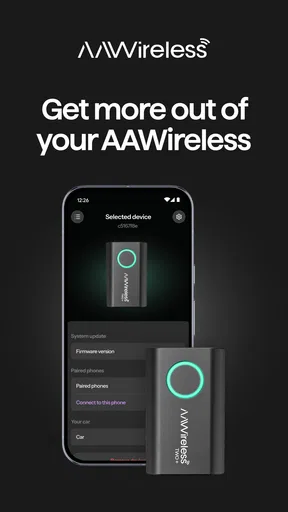
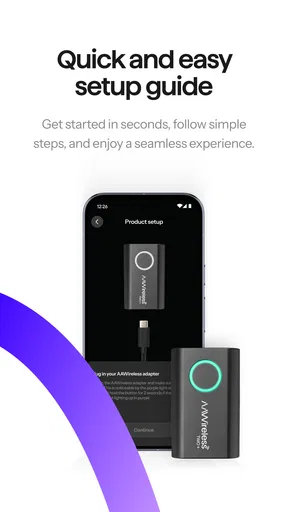
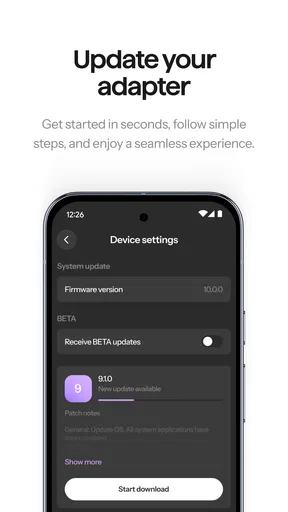
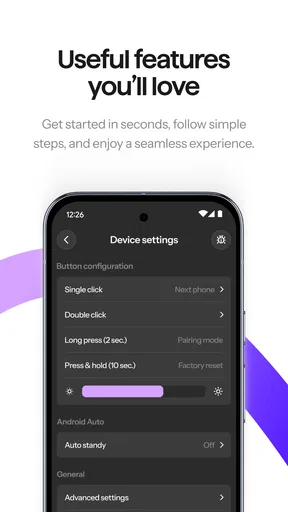
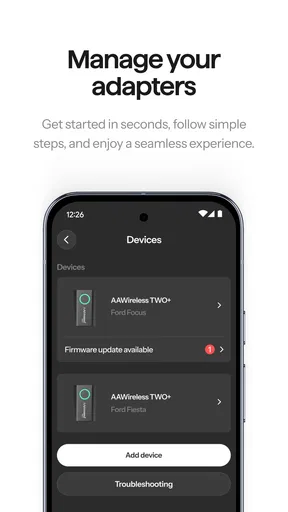
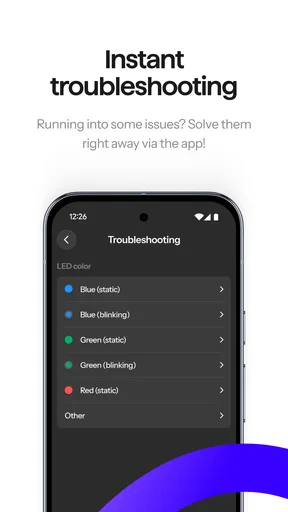
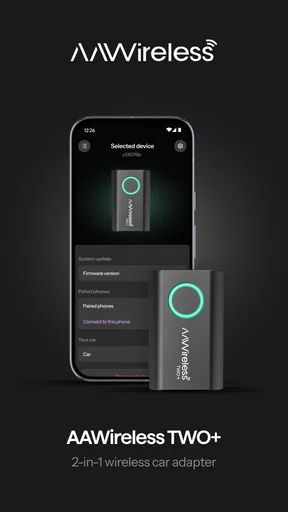
 Analysis by AppCompare
If your car already handles Android Auto over a cable, the AAWireless companion app is most useful when you want to make that familiar setup less hands-on. It works alongside an AAWireless adapter rather than replacing Android Auto or adding a new entertainment system, so its appeal is focused: configure the adapter, get it connected, and spend less time plugging in your phone. In my view, that narrow purpose is both its strength and its main limitation.
I would consider it if I make frequent short drives, share a car, or simply dislike handling a cable every time I get in. I would not install it expecting a broad collection of driving tools, nor would I treat wireless convenience as a reason to skip checking that my car and phone can use the adapter. The experience depends on that existing setup, and a wired connection remains the simpler choice for anyone who is happy with one.
A companion app, not a replacement for Android Auto
AAWireless is an Auto & Vehicles app from AAWireless, built to work with the company’s adapter. The distinction matters: the app is not a standalone way to turn any car into a wireless Android Auto system. Its job is to help you get more from the adapter you use with a compatible car setup. If you do not own the adapter, downloading the app alone is unlikely to change how your dashboard connects to your phone.
The app is free, has an Everyone age rating, and has been available since March 10, 2021. It currently shows a 4.3 average from around 19,000 ratings, with over a million installs. Those figures suggest it is an established companion for a real group of drivers, though they do not guarantee that every phone-and-car combination will behave the same way. The current version is 7.6.2659, and it requires Android 9 or later.
The real payoff is in the routine
The practical benefit is not a new navigation feature or a different music service. It is removing a repeated step from a familiar drive. For a commuter who gets in and out of the car several times a day, or a parent making a run of short errands, avoiding the cable ritual can make the car feel easier to use. The gain is modest on any single trip, but it can become meaningful when the same connection routine happens every day.
There is also a useful trade-off to keep in mind: wireless convenience means the phone is no longer connected to the car by a cable. If you rely on that cable to keep your phone charged, you may still need another charging plan for a longer drive. A wireless Android Auto connection and wireless phone charging are separate conveniences; one does not automatically provide the other. I would decide whether the tidier setup is worth that change before buying an adapter.
For occasional drivers, the calculation may go the other way. If you only use Android Auto now and then, plugging in is quick, predictable, and costs nothing beyond the cable you already have. The app makes more sense when it supports a routine you actually want to improve, rather than as something to install just because it is available.
Worth Reading Before You Choose

Switching to Android Auto Means Rethinking Your Driving Routine

Google Calendar Makes a Crowded Week Easier to Manage

Baby Panda World Brings Quick Play to Modern Phones, but Its Game Library Feels Busy

ESPN’s Live Game View Makes Following Close Games Easier

QuizzLand Review: A Good Fit for Short Trivia Breaks, Not Every Player

Basketball Stars: Multiplayer Is Fast, but Can It Recover When Matches Go Wrong?
What to check before relying on it
Compatibility is the first practical question. Before planning around wireless use, check that your car’s existing Android Auto setup and phone are suitable for the adapter, then follow the app’s setup guidance. A car with a USB port is not automatically a compatible Android Auto car, and a phone that works with Android Auto by cable is not, by itself, proof that every wireless configuration will work smoothly.
It is worth testing the setup while parked and before depending on it for a trip. Confirm that the phone connects, that Android Auto appears on the car display, and that the parts you use most—such as navigation audio and calls—behave as expected. If something is inconsistent, changing several settings at once makes it harder to tell what helped. I would make one adjustment, reconnect, and test again before moving on to another.
A second useful habit is to keep the adapter’s role in mind when troubleshooting. The app is there to help manage the AAWireless connection; it does not control every possible cause of a failed Android Auto session. The phone, the car’s infotainment system, the cable or port used during setup, and the wireless environment can all affect what happens. If the connection drops, first note whether Android Auto itself disappeared or whether only one function, such as audio, stopped behaving normally. That simple distinction can keep troubleshooting focused.
Where it fits among the alternatives
Compared with using Android Auto by cable, the app-and-adapter route exchanges a direct physical connection for less daily plugging and unplugging. Wired use is often the better fit if you value a straightforward connection or want the phone connected to a charging cable. Wireless use is more appealing when convenience and a less cluttered cabin matter more. Neither is universally better; the right option depends on how often you drive and what you want the connection to do.
It also differs from replacing a car’s head unit or choosing a vehicle with wireless Android Auto built in. Those routes can change the underlying hardware, while this app supports a specific adapter-based approach for a setup you already have. That can be attractive if you want to keep your existing dashboard, but it also means you are relying on an additional device and its connection rather than removing the hardware question altogether.
One non-obvious point is that wireless convenience can shift the annoyance rather than erase every inconvenience. You may no longer need to find the cable when you get in, but you still need to keep the adapter connected in the car and may need to manage phone charging separately. For a driver who takes long journeys, that can make a cable feel more practical. For someone making many brief trips, the reduced handling may be worth more than the lost charging connection.
A realistic day behind the wheel
Imagine leaving home for a short commute, stopping for groceries, and then getting back in for another quick drive. With a compatible adapter setup, the appeal is that you do not have to remember to connect your phone by cable at each stop. Your familiar Android Auto display remains the point of interaction, while the companion app helps with the adapter side of the arrangement. That is a small improvement, but it targets a repeated moment rather than asking you to learn a new dashboard interface.
On a longer drive, I would think differently. If the phone needs steady charging, or if the wireless connection proves less dependable in a particular car, the wired route may be preferable. I would keep a cable available as a fallback until I had tested the adapter across the trips I actually take. That is not a knock against the app; it is a sensible way to avoid making a new setup the only option before you know how it behaves in your own vehicle.
Who should use it—and who can skip it
This is best suited to Android Auto users who already have, or intend to use, an AAWireless adapter and want help with that connection. It is particularly appealing if your car’s current wired routine feels needlessly repetitive and you are comfortable checking compatibility and testing the setup. The app’s 4.3 average and established audience make it a credible companion to consider, but personal fit still depends on your equipment and habits.
I would skip it if you do not have the adapter, if your car does not already support the relevant Android Auto setup, or if plugging in is not a bother. I would also pause if you expect the app to add new media or navigation services: its purpose is connection support, not a replacement for the apps and functions already available through Android Auto. If you want a guaranteed wireless experience without an extra adapter in the cabin, a vehicle or head unit with wireless Android Auto built in may be a better match.
One question people often have is whether installing the app alone is enough. In practical terms, the app is a companion to the AAWireless adapter, so the adapter and a compatible car-and-phone setup are central to the experience. Another is whether wireless means the phone will charge: it does not follow from the wireless Android Auto connection, so plan for charging separately if your trips require it.
If you are deciding between this and a cable, ask yourself how often you connect and whether the cable is doing useful work by charging your phone. If you connect several times daily and already have a way to charge, wireless may feel worthwhile. If your trips are long, your battery is a concern, or your current wired link is dependable, staying wired is a perfectly sensible alternative.
Have you ever wished your Android Auto™ experience was just a tad more seamless and, dare I say, wireless? Well, let me introduce you to AAWireless, a nifty gadget that promises to cut the cord between your phone and your car’s infotainment system. I took this little device for a spin, and here’s how it went down.
Setting Up AAWireless: Easier Than Finding Parking in the City
Getting AAWireless up and running was surprisingly straightforward. I’m not a tech wizard, but even I managed to get it done without breaking a sweat. First off, you plug the device into your car’s USB port. It’s a compact little gadget, so it doesn’t clutter up your dashboard.
Once it’s connected, the app guides you through the setup process. Just make sure your phone’s Bluetooth is on, and you’re halfway there. The app is intuitive, and most of the time, it feels like the device is doing the heavy lifting. In a matter of minutes, I was cruising with a fully wireless Android Auto™ experience.
The Wireless Experience: Freedom at Your Fingertips
Now, onto the main event: the wireless experience. I’ve got to say, the freedom of not having to plug and unplug my phone every time I get in and out of the car is a game-changer. Whether you’re a daily commuter or just someone who loves a weekend drive, this is pure convenience.
The connection was stable for the most part. I did experience a couple of hiccups when driving through areas with spotty signal, but nothing major. When it’s working, the response time is almost as good as being wired. Navigation, music, calls – everything felt smooth and responsive.
Compatibility and Features: Does Your Car Make the Cut?
Before you rush out to grab one, you’ll want to make sure your car is compatible. The good news is AAWireless supports a wide range of vehicles, but it’s always best to double-check. The app provides a comprehensive list, and it’s updated regularly to include newer models.
As for features, this device doesn’t add any extra bells and whistles to Android Auto™, but that’s not really the point. It’s all about ditching the cables without sacrificing the core functionality you love. Think of it as your trusty sidekick, quietly enhancing your ride.
Living with AAWireless: Is It Worth It?
So, after spending some time with AAWireless, would I recommend it? Honestly, yes. It’s one of those gadgets that might not seem essential until you’ve tried it. Once you go wireless, it’s hard to go back to the tangle of cords.
The convenience factor is huge. For those who spend a lot of time on the road, it’s a small investment for a big payoff. Plus, it’s kind of satisfying to see your phone charging on the wireless pad without a single wire in sight.
In conclusion, if you’re looking to simplify your driving experience and enjoy a cleaner dashboard, AAWireless is a solid choice. Just make sure to check compatibility and be prepared for the occasional connectivity blip. Overall, it’s a smooth ride worth taking.
Pros
- Seamless wireless connection setup.
- Supports multiple Android Auto features.
- Compact and portable design.
- Regular firmware updates.
- Improves in-car audio experience.
Cons
- Initial setup can be tricky.
- May not support all car models.
- Occasional connectivity drops.
- Limited to Android devices.
- Requires Android Auto app.
FAQs for AAWireless for Android Auto™
What is AAWireless and how does it work?
AAWireless is a device that enables a wireless connection between your Android phone and your car's Android Auto system. By plugging it into your car's USB port, it removes the need for a physical USB cable, allowing for a seamless wireless Android Auto experience. This is particularly useful for users who prefer less clutter and more convenience in their vehicle setup.
Is my car compatible with AAWireless?
AAWireless works with most cars that support wired Android Auto. However, compatibility can vary based on the car's make, model, and infotainment system version. It's recommended to check the AAWireless website or user forums for a list of tested vehicles to ensure compatibility before purchase.
What are the setup requirements for AAWireless?
To set up AAWireless, you need an Android smartphone running version 9.0 or higher and a car that supports Android Auto. The setup process involves connecting the AAWireless device to your car's USB port and configuring the app on your phone to establish the wireless connection. Detailed instructions are available in the device manual and support resources.
Does AAWireless affect phone battery life?
Yes, using AAWireless can impact your phone's battery life as it relies on Bluetooth and Wi-Fi for connectivity. While the device offers the convenience of a wireless connection, it's important to monitor your phone's battery usage, especially during long drives. Carrying a car charger is advisable to keep your device powered.
What should I do if AAWireless isn't connecting properly?
If you encounter connectivity issues with AAWireless, there are a few troubleshooting steps to consider. Ensure your phone's Bluetooth and Wi-Fi are enabled, and try restarting both the phone and the AAWireless device. Checking for software updates and consulting the support section on the AAWireless website can also help resolve common issues.


